Pages

Monday, August 8, 2016

HOW TO INCREASE BATTERY LIFE OF YOUR LAPTOP

Hello Everyone,Today's I am going to tell you how to increase battery life of your laptop.Every laptop or Netbook user these days have the same headache of limited backup time of batteries. As far as your system is new , you will have a good backup time but when it becomes a few months old you will definitely face problem of limited battery life.
So here I am giving you a solution to Increase battery life of laptop upto a sufficient extent.
There is an inbuilt command in your computer to Increase battery life as well as the performance of the system but not all users are aware of it. Some laptops directly provide an interface with option termed as “ POWER SAVING MODE ” but if your laptop is old or don’t have this feature by default , you need not to worry because you can do the same task manually.

If you have a laptop with Windows 7 installed, you can use the ‘powercfg‘ command . It will display useful information about your laptop’s energy consumption and usage. If you can understand and maintain it correctly then you can extend your Battery life and performance by great amount.
Steps to increase your battery life:-
Step 1:- Click on the Start Menu and type “ CMD ” in the Start Search bar.

Step 2:- The search will start and it will then display an icon of “ CMD ” . simply right click on it and select Run as administrator.

Step 3:- It will open command line, now simply run the command “powercfg -energy” without quotes. (For windows 7 users.)Windows 8 users can Simply run the command “powercfg /energy” without quotes.

Step 4:- Now Press “Enter”.

Once you successfully execute this command , Windows will run a complete scan of your system and it will find some ways to improve performance and power efficiency.

The results of this process will be saved to an HTML file, which is commonly present in the “System32” folder of most of the systems.

To access this file, simply follow the path which will be displayed in command prompt window after completion of the command. Read This file to understand that what program in your system is consuming more power and degrading the performance. Fix the Problem to Increase battery life of laptop.

How to reduce to the number of programs running at startup

Hey guys,Good Morning to all of you.Now i am going to tell you how to reduce to the number of programs running at startup.Sometimes your PC is taking too long to boot, it’s probably because you have far too many programs running at startup.And this tricks help you to  Reducing this problems very easily, it will make your PC launch noticeably faster and lighter upon first load. To change the items running at startup, go to Run by pressing Windows key + R, and type "msconfig." A small window will appear (see the screenshot below), 

select the Startup tab. From here you will be able to turn off many startup programs, which can shave several seconds (or minutes) off your boot time. (Note Windows 8 has moved this functionality to the Task Manager). Try to make sure you research what you are turning off as some processes might be needed by third party programs or drivers you have installed.

HOW TO CREATE HOTSPOT OF YOUR SHARED Wi-fi IN YOUR PC

Hello Friends now I am back new tricks for you.Today i am going to tell you how create hotspot on your pc. You can easily create the hotspot of the wifi which your PC is connected using160 WiFi Application. This will allow you to create hotspot and share your computer internet wired or wireless to any other device very easily.

Thursday, July 7, 2016

HOW TO CHANGE BACKGROUND COLOR OF GOOGLE ACCOUNT PAGE

Hello Friends,I am back with new tricks.Today i am going to tell you how to change background color of google account.This 100% successful tricks to make your google account or gmail page colorful.The simple steps to follow for changing background color of your gmail accounts.
Step 1:-Open your browser.
Step 2:-Login your gmail account.
Step 3:-In new tab search gmail redesigned or click this link to download gmail 
https://chrome.google.com/webstore/detail/google-redesigned/mkpckdjkmmgflnghjdokniaakigbfofa?hl=en
Step 4:-Now click at add chrome
Step 5:-After successful downloading and as chrome extension.
Step 6:-Now In the browser you will notice in right hand side a         small box will appear like this             
Step 7:-Click on this box and select theme and download                 Step 8:-Now you gmail account background will change.                                                                          

Monday, June 13, 2016

HOW TO OPEN YOUR NOTEPAD THROUGH JAVA PROGRAMS

Hello friends,Now i am back with new java programs.Now you can open your notepad in programmer style.Now i am going to tell you how to open your notepad through java programs.
Notepad is mostly used software.notepad is very useful for programmer because most of the programs run through notepad.like java c, c++ etc.
Steps to create a java programs to open notepad.
Step 1:-Open your notepad
Step 2:-Copy paste this code

     import java.util.*;
    class notepad
   {
           public static void main(String []a) throws Exception
          {
               Runtime r=Runtime.getRuntime();
               r.exec("notepad");
     
          }
  }
Step 3:-Now Save this with extension .java for example notepad.java
Step 4:-Again open new notepad file.
Step 5:-Copy paste this code
            javac notepad.java
           java notepad
          pause
Step 6:-Save this file with extension .bat for example notepad.bat
Step 7:-Now click at this file.

Tuesday, June 7, 2016

HOW TO CREATE A BATCH FILE FOR JAVA

Hello frinds, I am back with  new things to learning.Today i am going to tell you how to create a batch file for java.As we know that java is very famous language.Android operating system is built in java language.many people want to learn this language.most of the people compile their java program through command line.but problem of this you have to write every time command to execute your program.But now you can create a batch file to execute java program from anywhere in your computer or any other computer.
Steps to create batch file to execute java program.
Step 1:-Open the notepad
Step 2:-Type the following command.
     
     javac filename.java
     java classname
     pause

Step 3:-Save the file with extension .bat
example program1.bat
Step 3:-Now double click on this file whenever you need to execute your program.

Monday, May 16, 2016

PHOTOSHOP ERROR 16 SOLUTION

Hello friends,I am back with new tricks.Now a days millions of photoshop user available in world. photoshop  is the best software for photo editing.Its provides many tools for editing your images. And make your images  more creative and attractive.But sometime it will generate error message while opening your photoshop software.Error 16 in photoshop is very common error.In this error os instructs you reinstall or install again this software.Then you want to know that what is the solution of this error without uninstalling  photoshop.
The steps for solution of error 16.
Step 1:-Right click on photoshop software.
Step 2:-Click at Run as adminstrator

TOP 5 TIPS FOR SEO

SEO is the process of developing  site to appear at the top of search results. When users search for something in search engines like Google, yahoo etc., then these search engines will search your webpages, videos and other stuff which are relevant to the search query and place them on search results.
1. Quality content
Always try to provide quality content in your blog. If you write quality posts then people will like your articles and share them so that that you can increase your blog traffic. On the other hand, if you copy stuff from other sources than people may get the wrong impression on you and will effect your blog traffic in a bad way. So try to provide genuine content in your blog articles.
Read: Get Godaddy $1/month hosting with a free domain
2. Social Media
Social media is the best source to increase blog traffic. As you are beginner, you cannot get huge traffic in over night. So all you need to do is to get traffic from social media.
Just follow these simple steps to increase blog traffic from social media
3. Link Building
Link Building is the process of getting back links to your site from other sites. To get quality back links to your site write Guest posts for trusted and high page ranked sites and ask them for a Do Follow back link. Search engine bots follow these Do Follow back links so you can get more traffic to your site. Also Commenting on CommentLuv blogs will helps you to get traffic.
4. Responsive Template
Use responsive and well SEO optimized template for your blog. Responsive template makes your users comfortable while reading and is an extra benefit for your success in blogging. So use good looking responsive template for your blog and try to have less loading time for your blog by removing unwanted widgets. Have a look at GENESIS WordPress Themes
5. Image Optimization
Use proper images for your blog articles and try to have at least one image for every blog post. After adding image to your post, just click on properties and give Title text and Alt text. Search engine bots will read thisAlt text from your article so use image optimization for better results.
Godaddy .COM domain at RS 99 [Get the deal]

Thursday, May 12, 2016

TOP 3 SITES WHICH PROVIDE YOU UNLIMITED FREE SMS ON ANY NUMBER

Hello friends,Now i am going to tell you Top 3 sites which provide you free unlimited sms on any mobile number.And you can also trace of location of any mobile number.And you can also make a call and earn money by inviting to your friends.
These sites are:-
  1. Site2sms
  2. way2sms
  3. 160by2

HOW TO MAKE A FREE CALL FROM WINDOWS PHONE.

Hello friends,Today you will learn with Raj Roushan How to make a free call from windows phone.
I had already previously many post related to Windows phone.Now i am tell another tricks of windows phone.By this you able to make a free call from your windows mobile phone.There are many application in the windows store which provide you make a call.
some simple steps to get this application.
Step 1:-Open  your windows phone store.
Step 2:-Search the "royalmobile" from windows phone store.
Step 3:-Now download and install this application.
Step 4:-After successfully installation this application then start                   this application
Step 5:-Now sign up your account.
            Now enjoy it free call.

Tuesday, May 10, 2016

HOW TO CHANGE GOOGLE SEARCH PAGE IN 13 DIFFERENT STYLE.

Hello guys,Now i am going to tell you how to change google search style.Google search engine provide 13 different style of google search page.We all have a seen only ordinary google search page.But now you can make your google search interesting.

13 different style of google search page are:
  1. Google BearShare
  2. Google Loco
  3. Google Gothic
  4. Google Linux
  5. Google L33t
  6. Google Ewmew
  7. xxklingon
  8. xxpiglatin
  9. Google BSD
  10. Google Easter Egg
  11. Answer to life the Universe and Everything
  12. Google Mozilla
  13. Google Gizoogl
For example first you may search on google search"Google Loco"
then select i am lucky feeling.

HOW TO DRAW HEART SHAPE ON GOOGLE SEARCH.

Hello friends,Today i am going to tell you how to draw heart shape on google search.Google is not the only search engine but this is also comes with lots of Fun oriented search results.This is my another google search engine tricks for funny results of your search.By this tricks you can draw DIL(heart)  shape on google search.If you have little knowledge of math(Trigonometry) then you can draw lots of shape according to your needs.
Now follow simple steps to draw heart shape on google search.
Step 1:-Open your browser.
Step 2:-Type google.com.
Step 3:-Type on google search
         
   (sqrt(cos(x))*cos(200*x)+sqrt(abs(x))-0.7)*(4-x*x)^0.1, sqrt(9-x^2),-sqrt(9-x^2) from -4.5 to 4.5


HOW TO MAKE YOUR PEN DRIVE BOOTABLE FOR LOADING ANY OS.

Hello friends,Today i am going to tell you how to make your pen drive bootable for installing any operating system in your system.I am telling you very simple method to make your pen drive bootable.This is done by software and software name is Rufus.


Use Rufus to create bootable pendrive

If you too are one such user looking for a solution, you can stop looking and try Rufus, an open source tool to create a bootable USB drive from any bootable ISO.

Rufus is small in size (nearly 615 KB) and claims to be faster at creating bootable USB drives than most applications of its type. Rufus is also portable which means that you need not install this software to use it. Just double click on the executable file and the application will start working. Rufus also allows you to add fixes to use your bootable flash drives on older computers having BIOSs which do not support booting from them.

Strangely however, Rufus can only create bootable flash drives from ISOs meaning you need to have an ISO image of the CD or DVD of the OS of your choice.

I do not think this should be too much of a problem considering how easy it is to create ISOs from DVDs and CDs.


How to use Rufus?

Step 1:- When you start Rufus, the first option that you will see is Device:. It contains all your connected USB drives. If you plug in a USB drive after starting Rufus, the drive you have connected will shortly be available here.

Step 2:- You will not need to modify the Partition Scheme and target system type, as the default choice is suitable for making the USB drive work on both UEFI and legacy BIOS computers.
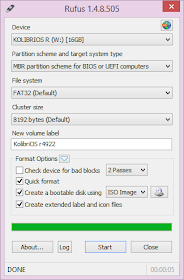


Rufus in Windows 8


Step 3:- Change the file system from FAT32 to NTFS from the dropdown menu. This is the file system with which your USB drive will be formatted with. Do note that older computers will not boot from a flash drive formatted as NTFS. Do not modify the cluster size. Enter the name you want for your USB device in the Volume label box.

Step 4:-Check the Create a bootable disk using checkbox if it is not already checked. In the dropdown menu next to it, select ISO image. Click on the button right to it to locate your ISO image.

Do note that Rufus will format your USB drive deleting everything on it before making it bootable. So, make sure that it does not contain any important data.

Step 5:- Click on Start to format your USB drive and extract all files of the ISO to it.

To install the OS, restart your computer and select your USB device as the primary boot option in the BIOS boot menu.

Sunday, May 8, 2016

HOW TO USE MORE THAN ONE WHATSAPP IN YOUR ANDROID PHONE

Hello friends,Now i am going to tell how to use multiple whatsapp in your android phone.There are many application which provide you to use multiple whatspp in single android phone.But i am tell you only best and most convenient method to use more than one whatsapp accounts in same device. This method to run 2 whatsapp in one android phone.if you are looking for method to use two WhatsApp in one android phone without rooting your phone. There is a new application known as GBWhatsapp apk. Well, it is one of best method to run 2 whatsapp on android without root.
                                                     

How to use two GBWhatsapp:
GBWhatsapp is basically another Whatsapp client for Android for dual whatsapp account which you can install in your dual sim android phone parallely. Installing GBWhatsapp is very easy.

Steps to follow for use GBwhatsapp.

  1. First of all, Download GBWhatsapp from this link or below button.
  2. I hope you have installed GBWhatsapp in your android phone by tapping on it and then by clicking on Install.
  3. Open GBWhatsapp application now and Sign Up with second number on it which you want to use for dual Whatsapp accounts.
  4. Verify this number and Use dual whatsapp account in your dual sim android phone now.