Saturday, May 21, 2016

Thursday, May 19, 2016
Monday, May 16, 2016
PHOTOSHOP ERROR 16 SOLUTION
Hello friends,I am back with new tricks.Now a days millions of photoshop user available in world. photoshop is the best software for photo editing.Its provides many tools for editing your images. And make your images more creative and attractive.But sometime it will generate error message while opening your photoshop software.Error 16 in photoshop is very common error.In this error os instructs you reinstall or install again this software.Then you want to know that what is the solution of this error without uninstalling photoshop.
The steps for solution of error 16.Step 1:-Right click on photoshop software.
Step 2:-Click at Run as adminstrator
TOP 5 TIPS FOR SEO
SEO is the process of developing site to appear at the top of search results. When users search for something in search engines like Google, yahoo etc., then these search engines will search your webpages, videos and other stuff which are relevant to the search query and place them on search results.
1. Quality content
Always try to provide quality content in your blog. If you write quality posts then people will like your articles and share them so that that you can increase your blog traffic. On the other hand, if you copy stuff from other sources than people may get the wrong impression on you and will effect your blog traffic in a bad way. So try to provide genuine content in your blog articles.
Read: Get Godaddy $1/month hosting with a free domain
2. Social Media
Social media is the best source to increase blog traffic. As you are beginner, you cannot get huge traffic in over night. So all you need to do is to get traffic from social media.
Just follow these simple steps to increase blog traffic from social media
3. Link Building
Link Building is the process of getting back links to your site from other sites. To get quality back links to your site write Guest posts for trusted and high page ranked sites and ask them for a Do Follow back link. Search engine bots follow these Do Follow back links so you can get more traffic to your site. Also Commenting on CommentLuv blogs will helps you to get traffic.
4. Responsive Template
Use responsive and well SEO optimized template for your blog. Responsive template makes your users comfortable while reading and is an extra benefit for your success in blogging. So use good looking responsive template for your blog and try to have less loading time for your blog by removing unwanted widgets. Have a look at GENESIS WordPress Themes
5. Image Optimization
Use proper images for your blog articles and try to have at least one image for every blog post. After adding image to your post, just click on properties and give Title text and Alt text. Search engine bots will read thisAlt text from your article so use image optimization for better results.
Godaddy .COM domain at RS 99 [Get the deal]
1. Quality content
Always try to provide quality content in your blog. If you write quality posts then people will like your articles and share them so that that you can increase your blog traffic. On the other hand, if you copy stuff from other sources than people may get the wrong impression on you and will effect your blog traffic in a bad way. So try to provide genuine content in your blog articles.
Read: Get Godaddy $1/month hosting with a free domain
2. Social Media
Social media is the best source to increase blog traffic. As you are beginner, you cannot get huge traffic in over night. So all you need to do is to get traffic from social media.
Just follow these simple steps to increase blog traffic from social media
3. Link Building
Link Building is the process of getting back links to your site from other sites. To get quality back links to your site write Guest posts for trusted and high page ranked sites and ask them for a Do Follow back link. Search engine bots follow these Do Follow back links so you can get more traffic to your site. Also Commenting on CommentLuv blogs will helps you to get traffic.
4. Responsive Template
Use responsive and well SEO optimized template for your blog. Responsive template makes your users comfortable while reading and is an extra benefit for your success in blogging. So use good looking responsive template for your blog and try to have less loading time for your blog by removing unwanted widgets. Have a look at GENESIS WordPress Themes
5. Image Optimization
Use proper images for your blog articles and try to have at least one image for every blog post. After adding image to your post, just click on properties and give Title text and Alt text. Search engine bots will read thisAlt text from your article so use image optimization for better results.
Godaddy .COM domain at RS 99 [Get the deal]
Thursday, May 12, 2016
TOP 3 SITES WHICH PROVIDE YOU UNLIMITED FREE SMS ON ANY NUMBER
Hello friends,Now i am going to tell you Top 3 sites which provide you free unlimited sms on any mobile number.And you can also trace of location of any mobile number.And you can also make a call and earn money by inviting to your friends.
These sites are:-
- Site2sms
- way2sms
- 160by2
HOW TO MAKE A FREE CALL FROM WINDOWS PHONE.
Hello friends,Today you will learn with Raj Roushan How to make a free call from windows phone.
I had already previously many post related to Windows phone.Now i am tell another tricks of windows phone.By this you able to make a free call from your windows mobile phone.There are many application in the windows store which provide you make a call.
some simple steps to get this application.
Step 1:-Open your windows phone store.
Step 2:-Search the "royalmobile" from windows phone store.
Step 3:-Now download and install this application.
Step 4:-After successfully installation this application then start this application
Step 5:-Now sign up your account.
Now enjoy it free call.
Tuesday, May 10, 2016
HOW TO CHANGE GOOGLE SEARCH PAGE IN 13 DIFFERENT STYLE.
Hello guys,Now i am going to tell you how to change google search style.Google search engine provide 13 different style of google search page.We all have a seen only ordinary google search page.But now you can make your google search interesting.
- Google BearShare
- Google Loco
- Google Gothic
- Google Linux
- Google L33t
- Google Ewmew
- xx–klingon
- xx–piglatin
- Google BSD
- Google Easter Egg
- Answer to life the Universe and Everything
- Google Mozilla
- Google Gizoogl
For example first you may search on google search"Google Loco"
then select i am lucky feeling.

HOW TO DRAW HEART SHAPE ON GOOGLE SEARCH.
Hello friends,Today i am going to tell you how to draw heart shape on google search.Google is not the only search engine but this is also comes with lots of Fun oriented search results.This is my another google search engine tricks for funny results of your search.By this tricks you can draw DIL(heart) shape on google search.If you have little knowledge of math(Trigonometry) then you can draw lots of shape according to your needs.
Now follow simple steps to draw heart shape on google search.Step 1:-Open your browser.
Step 2:-Type google.com.
Step 3:-Type on google search
(sqrt(cos(x))*cos(200*x)+sqrt(abs(x))-0.7)*(4-x*x)^0.1, sqrt(9-x^2),-sqrt(9-x^2) from -4.5 to 4.5

HOW TO MAKE YOUR PEN DRIVE BOOTABLE FOR LOADING ANY OS.
Hello friends,Today i am going to tell you how to make your pen drive bootable for installing any operating system in your system.I am telling you very simple method to make your pen drive bootable.This is done by software and software name is Rufus.
Use Rufus to create bootable pendrive
If you too are one such user looking for a solution, you can stop looking and try Rufus, an open source tool to create a bootable USB drive from any bootable ISO.
Rufus is small in size (nearly 615 KB) and claims to be faster at creating bootable USB drives than most applications of its type. Rufus is also portable which means that you need not install this software to use it. Just double click on the executable file and the application will start working. Rufus also allows you to add fixes to use your bootable flash drives on older computers having BIOSs which do not support booting from them.
Strangely however, Rufus can only create bootable flash drives from ISOs meaning you need to have an ISO image of the CD or DVD of the OS of your choice.
I do not think this should be too much of a problem considering how easy it is to create ISOs from DVDs and CDs.
How to use Rufus?
Step 1:- When you start Rufus, the first option that you will see is Device:. It contains all your connected USB drives. If you plug in a USB drive after starting Rufus, the drive you have connected will shortly be available here.
Step 2:- You will not need to modify the Partition Scheme and target system type, as the default choice is suitable for making the USB drive work on both UEFI and legacy BIOS computers.
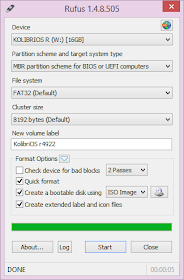
Rufus in Windows 8
Step 3:- Change the file system from FAT32 to NTFS from the dropdown menu. This is the file system with which your USB drive will be formatted with. Do note that older computers will not boot from a flash drive formatted as NTFS. Do not modify the cluster size. Enter the name you want for your USB device in the Volume label box.
Step 4:-Check the Create a bootable disk using checkbox if it is not already checked. In the dropdown menu next to it, select ISO image. Click on the button right to it to locate your ISO image.
Do note that Rufus will format your USB drive deleting everything on it before making it bootable. So, make sure that it does not contain any important data.
Step 5:- Click on Start to format your USB drive and extract all files of the ISO to it.
To install the OS, restart your computer and select your USB device as the primary boot option in the BIOS boot menu.
Use Rufus to create bootable pendrive
If you too are one such user looking for a solution, you can stop looking and try Rufus, an open source tool to create a bootable USB drive from any bootable ISO.
Rufus is small in size (nearly 615 KB) and claims to be faster at creating bootable USB drives than most applications of its type. Rufus is also portable which means that you need not install this software to use it. Just double click on the executable file and the application will start working. Rufus also allows you to add fixes to use your bootable flash drives on older computers having BIOSs which do not support booting from them.
Strangely however, Rufus can only create bootable flash drives from ISOs meaning you need to have an ISO image of the CD or DVD of the OS of your choice.
I do not think this should be too much of a problem considering how easy it is to create ISOs from DVDs and CDs.
How to use Rufus?
Step 1:- When you start Rufus, the first option that you will see is Device:. It contains all your connected USB drives. If you plug in a USB drive after starting Rufus, the drive you have connected will shortly be available here.
Step 2:- You will not need to modify the Partition Scheme and target system type, as the default choice is suitable for making the USB drive work on both UEFI and legacy BIOS computers.
Rufus in Windows 8
Step 3:- Change the file system from FAT32 to NTFS from the dropdown menu. This is the file system with which your USB drive will be formatted with. Do note that older computers will not boot from a flash drive formatted as NTFS. Do not modify the cluster size. Enter the name you want for your USB device in the Volume label box.
Step 4:-Check the Create a bootable disk using checkbox if it is not already checked. In the dropdown menu next to it, select ISO image. Click on the button right to it to locate your ISO image.
Do note that Rufus will format your USB drive deleting everything on it before making it bootable. So, make sure that it does not contain any important data.
Step 5:- Click on Start to format your USB drive and extract all files of the ISO to it.
To install the OS, restart your computer and select your USB device as the primary boot option in the BIOS boot menu.
Sunday, May 8, 2016
HOW TO USE MORE THAN ONE WHATSAPP IN YOUR ANDROID PHONE
Hello friends,Now i am going to tell how to use multiple whatsapp in your android phone.There are many application which provide you to use multiple whatspp in single android phone.But i am tell you only best and most convenient method to use more than one whatsapp accounts in same device. This method to run 2 whatsapp in one android phone.if you are looking for method to use two WhatsApp in one android phone without rooting your phone. There is a new application known as GBWhatsapp apk. Well, it is one of best method to run 2 whatsapp on android without root.

How to use two GBWhatsapp:
GBWhatsapp is basically another Whatsapp client for Android for dual whatsapp account which you can install in your dual sim android phone parallely. Installing GBWhatsapp is very easy.
Steps to follow for use GBwhatsapp.
- First of all, Download GBWhatsapp from this link or below button.
- I hope you have installed GBWhatsapp in your android phone by tapping on it and then by clicking on Install.
- Open GBWhatsapp application now and Sign Up with second number on it which you want to use for dual Whatsapp accounts.
- Verify this number and Use dual whatsapp account in your dual sim android phone now.
HOW TO SET PATTERN LOCK IN YOUR LAPTOP
Hello friends,Today i am going to tell you how to set pattern lock in your laptop.Generally pattern has been shown in android phone.But you can also set pattern lock in your pc or laptop.This is done by a software.
Steps to set a pattern lock in your pc or laptop
Step 1:-Download the software mazelock
Step 2:-Install the software.


Step 3:-Reset a pattern lock and set your lock.

Step 4:-Now your system will lock in your.
My this tricks is also available in you tube for view thistricks in you tube click on this link.
Saturday, May 7, 2016
Friday, May 6, 2016
HOW TO CHAT ON FACEBOOK WITH COLORFUL TEXT
Hello friends,Now i am going tell you another tricks of facebook.By this you can send message to your friends with colorful text.But this to difficult to use this.The some code which converts you text in colorful.
[[107015582669715]] = A
[[116067591741123]] = B
[[115602405121532]] = C
[[112542438763744]] = D
[[115430438474268]] = E
[[109225112442557]] = F
[[111532845537326]] = G
[[111356865552629]] = H
[[109294689102123]] = I
[[126362660720793]] = J
[[116651741681944]] = K
[[115807951764667]] = L
[[106596672714242]] = M
[[108634132504932]] = N
[[116564658357124]] = O
[[111669128857397]] = P
[[107061805996548]] = Q
[[106699962703083]] = R
[[115927268419031]] = S
[[112669162092780]] = T
[[108983579135532]] = U
[[107023745999320]] = V
[[106678406038354]] = W
[[116740548336581]] = X
[[112416755444217]] = Y
[[165724910215]] = Z
How to use this code.
suppose you wanna to send message HI
then you type this like this
[[111356865552629]] [[109294689102123]]
make sure the space must be within the code.
[[107015582669715]] = A
[[116067591741123]] = B
[[115602405121532]] = C
[[112542438763744]] = D
[[115430438474268]] = E
[[109225112442557]] = F
[[111532845537326]] = G
[[111356865552629]] = H
[[109294689102123]] = I
[[126362660720793]] = J
[[116651741681944]] = K
[[115807951764667]] = L
[[106596672714242]] = M
[[108634132504932]] = N
[[116564658357124]] = O
[[111669128857397]] = P
[[107061805996548]] = Q
[[106699962703083]] = R
[[115927268419031]] = S
[[112669162092780]] = T
[[108983579135532]] = U
[[107023745999320]] = V
[[106678406038354]] = W
[[116740548336581]] = X
[[112416755444217]] = Y
[[165724910215]] = Z
How to use this code.
suppose you wanna to send message HI
then you type this like this
[[111356865552629]] [[109294689102123]]
make sure the space must be within the code.
HOW TO OPEN PRIVATE PHOTO OR LOCKED PHOTO
Hello friens,Today i am going to tell you how to open locked photos of someone.or private photos.Most of the try to do it but you can't do it.I am also try it.recently i found this tricks to view private photos
Steps to view private photos on facebook.
Step 1:-Login your Facebook Account.
Step 2:- Now open the profile of your friend whose picture you want to open
Step 3:- Now right click on display picture
Step 4:-Click on copy image
Step 5:- After that open the new tab and paste the link ok Address bar and press enter
Step 6:-You Will see now the small picture of your friend
Step 7:-Now find “t1.0-1/p160x160” on the URL & delete the “ "t1.0-1/p160x160” from the URL and press enter.
Step 2:- Now open the profile of your friend whose picture you want to open
Step 3:- Now right click on display picture
Step 4:-Click on copy image
Step 5:- After that open the new tab and paste the link ok Address bar and press enter
Step 6:-You Will see now the small picture of your friend
Step 7:-Now find “t1.0-1/p160x160” on the URL & delete the “ "t1.0-1/p160x160” from the URL and press enter.
HOW TO CREATE YOUR OWN RUN COMMAND
Hello friends,Today i am going to tell you How To Create Of Your Own Run Commands On Your Computer On the Windows operating system, the Run command is used to directly open an application or document whose path is known. It functions more or less like a single-line command line interface.The Run command is used to run applications via terminal commands.
Step 1:-The first step is to select the software or application for which you want to make custom Run command. For example, let us consider Google Chrome as the example here. Remember, you can choose any application other than which is already there in the Run command.
Step 2:-In the second step, right click on the desktop of your computer system and make a new shortcut. Right click > New > Shortcut
Step 3:- As you select the Shortcut option in the 2nd Step, it will open up a dialog box. And, the dialog box will ask you path of the application or software for which you want to create the Run command.
Step 4:-Now, you need to browse through the files and choose the one that shows “chrome.exe”. Well, it is quite obvious that all the executable files can be found in the C drive (or wherever the Operating System has been installed), inside the folder “Program Files”. For example, “C:\ProgramFiles\GoogleChrome\chrome.exe”

Step 5:-Once you are done with Step number 4, just click on “Next” button and simply provide a relative name to that shortcut. Remember, the same name will be used later in the Run command.
For example, “GC” for Google Chrome
Step 6:-Now, click on the “Finish” button. Once it is done, an icon related to that application or software will show up on your computer’s screen. It means that the process of creating shortcut has been done successfully.
Step 7:-In this step, just cut and paste that recently made shortcut icon into your computer’s root drive, in its Windows folder.
For example,C:\ Windows, Make sure you are the administrator of the computer or have its password.
Step 8:-Now, you are done with the set up and can run the application through Run Command. Just go to Run and enter the keyword “GC”, and Google Chrome will begin executing.
Step 1:-The first step is to select the software or application for which you want to make custom Run command. For example, let us consider Google Chrome as the example here. Remember, you can choose any application other than which is already there in the Run command.
Step 2:-In the second step, right click on the desktop of your computer system and make a new shortcut. Right click > New > Shortcut
Step 3:- As you select the Shortcut option in the 2nd Step, it will open up a dialog box. And, the dialog box will ask you path of the application or software for which you want to create the Run command.
Step 4:-Now, you need to browse through the files and choose the one that shows “chrome.exe”. Well, it is quite obvious that all the executable files can be found in the C drive (or wherever the Operating System has been installed), inside the folder “Program Files”. For example, “C:\ProgramFiles\GoogleChrome\chrome.exe”

Step 5:-Once you are done with Step number 4, just click on “Next” button and simply provide a relative name to that shortcut. Remember, the same name will be used later in the Run command.
For example, “GC” for Google Chrome
Step 6:-Now, click on the “Finish” button. Once it is done, an icon related to that application or software will show up on your computer’s screen. It means that the process of creating shortcut has been done successfully.
Step 7:-In this step, just cut and paste that recently made shortcut icon into your computer’s root drive, in its Windows folder.
For example,C:\ Windows, Make sure you are the administrator of the computer or have its password.
Step 8:-Now, you are done with the set up and can run the application through Run Command. Just go to Run and enter the keyword “GC”, and Google Chrome will begin executing.
Wednesday, May 4, 2016
HOW TO SEND FAKE SMS ON ANY NUMBERS
Hello friends,Now i am going to tell you how to send fake sms to any number without registering your mobile number.simply open your browser and type http://www.globfone.com and send sms free without registering your mobile number.
HOW TO MAKE CALL FREE ON INTERNET.
Hello friends,Today i am going to tell you how to make a call free on internet without registering your mobile number.This is very useful tricks to make a call.you can also make a international call through internet.
Steps to make a free call.
Step 1:-Open the chrome browser.
Step 2:-Type the call2friends.
enjoy it make a free call.

Steps to make a free call.
Step 1:-Open the chrome browser.
Step 2:-Type the call2friends.
enjoy it make a free call.

Saturday, April 30, 2016
HOW TO ACCESS YOUR FACEBOOK CHAT ON YOUR DESKTOP.
Hello friends,Now i am to tell another tricks of facebook. I had already posted many tricks related to facebook such delete your facebook account permanently, recover your deleted message of your facebook and so on.Now i am tell you access facebook chat on desktop without opening your browser.This is the way to connect your friends without opening your browser.
Some simple steps to access your facebook chat on your desktop.
Step 1:-Download the software "digsby"
Step 2:-Open the software and fill the information.

Step 3:-Connect your facebook account.
Step 4:-Now login your fb account.and enjoy it.it works as messanger.

Subscribe to:
Posts (Atom)